Sometimes you meet a situation when remote Windows is completely frozen, so you can't even start RDP session. But if you can open console session via SSH, it's possible to reboot the computer remotely.
1. Enter the text cd "C:\Program Files\Tracker Software\PDF-XChange Standard" and press Enter.
2. Enter pdfSaver.exe /AddPrinter <PrinterName> [/NoNotify] to create new copies of PDF-XChange Standard in the printers list.
The parameters operate as follows:
<AddPrinter> adds a new printer to the printers list.
<PrinterName> determines
the printer name. If the printer name contains spaces then it must be
enclosed in quotation marks, for example "Sample Printer ". A name
different from those of existing printers must be used.
<NoNotify> is an optional parameter that prevents the sending of information about changes in the printers list to other applications.
Создать LiveUSB (Linux, Windows — не важно, главное, чтобы был testdisk).
Через LiveUSB запустить testdisk и найти старые разделы (через [Quick Search] и [Deeper Search]).
Если данные на них видны, то можно спокойно сохранить их, разумеется,
на другой жёсткий диск. Если нет — то идти дальше по пунктам.
Если есть возможность, лучше создать образ всего жёсткого диска и
работать только с ним. Это может сделать почти любая программа для
восстановления данных. В Linux можно воспользоваться командой sudo dd if="/dev/DISKNAME" of="/PATH/TO/IMAGE.dd" conv=sync,noerror (ее описание есть выше).
LiveUSB — это, конечно, хорошо, но как показал опыт, не всякая
программа будет работать в ней. R-Linux работать отказалась. Виртуалка,
кстати, тоже зависала несколько раз. Поэтому, скорее всего, нужна будет
полноценная установленная система (Linux, Windows — не важно).
Далее снова открыть testdisk. Если есть образ диска, то открыть его
так: testdisk /path/to/image.dd. Найти свои старые разделы, выбрать их и
нажать [Write] (вверху есть подробная инструкция). Это единственная
программа, которой я позволю вносить изменения на диск (т.к. в случае
ошибки всегда можно повторить процедуру). Если есть возможность, нужно
создать через testdisk образы восстановленных разделов.
Поставить программы для восстановления данных и «скормить» им
восстановленные testdisk-ом разделы, а лучше их образы. Не позволять
программам вносить изменений (если нет сохранённых образов разделов) —
они должны только показать данные, которые можно будет восстановить.
If you have a home lab environment or other lab that you continually
test various solutions, licensing and trial expiration is a challenge
that you constantly tend to run into. It is just part of the fun of lab
environments. While most trials are fairly “hard and fast” and don’t
allow you to reset the trial expiration, if you work with Microsoft
Windows Server and Remote Desktop Services (RDS), there is a “hack” that
allows you to effectively reset the expiration of Remote Desktop
Services grace period where you can essentially rewind the clock on
your RDS licensing if you are making use of this role inside your lab
environment. In my lab environment, I am making use of Windows Server
2019 for my Windows workloads. In this post, I will show how to reset
120 day RDS Grace period on 2016 and 2019 Windows Server. Let’s see.
Remote Desktop Services RDS Licensing
When you install Windows Server 2016 or 2019 as with previous Windows
versions, you get the normal ability to have the two sessions that you
generally have available for administering. However, when you install
the true Remote Desktop Services role, you have the ability to have
multiple sessions to your server.
When you install the role, by default, you have a 120-day grace
period that Microsoft gives you to properly license the server for use
as an RDS installation. If you are using a server in a lab environment,
most likely, you are not going to license this type of server outside of
production.
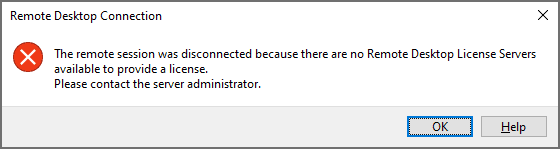
Once the 120 day grace period has expired, you will see the following error when you attempt to RDP to the server:
Error after 120 day grace period has expired for Remote Desktop Services
You can either redeploy your Windows Server which will allow you to
spin up a new 120 day grace period, or you can actually reset the grace
period. If you are like me, the latter is certainly the path of least
resistance and work involved. Let’s take a look at how to reset the 120
day RDS grace period.
You can take a closer look at the official licensing documentation for Remote Desktop Services here:
For the exercise of resetting the 120 day grace period for the RDS
role, the registry editor is your friend and makes this process easy.
Before we begin, there are a couple of disclaimers to make here. Editing
the registry can result in totally destroying a Windows system, so
proceed with any low-level registry edits with caution. If you are
working with a virtual machine, it is always a good practice to create a
quick snapshot of the Windows virtual machine before you begin.
Additionally, for production systems, resetting the 120 day grace
period should only be done for systems that are not in production as you
should have proper licensing installed for production use.
To reset the grace period, there are actually just 3 steps involved:
Change permissions on the RCM > GracePeriod key
Delete the “Timebomb” registry entry
Reboot the server
Now that we have level-set, once you have your snapshot or other
backup created, you need to navigate to the following location on your
RDS server:
Change Permissions on the RDS GracePeriod key and delete the key
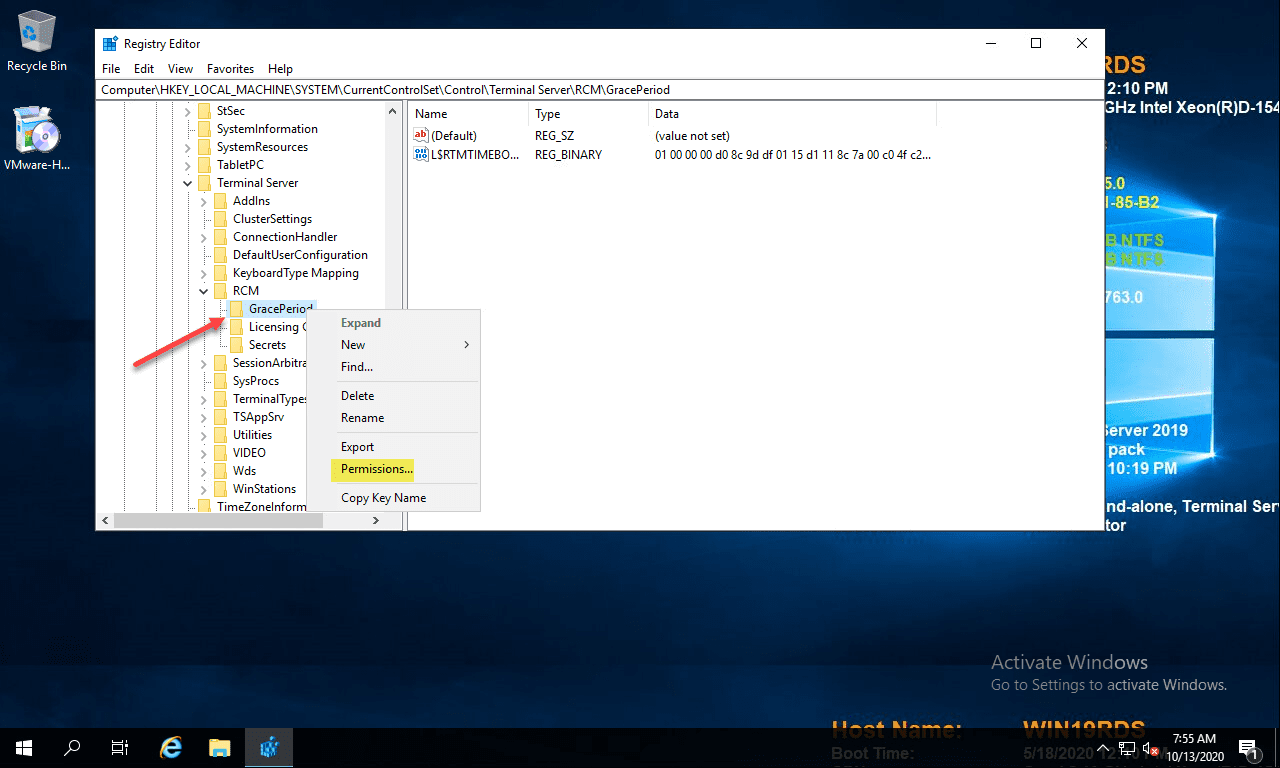
After you have navigated to the key documented above, right-click GracePeriod and select Permissions.
Navigate to the RDS GracePeriod key
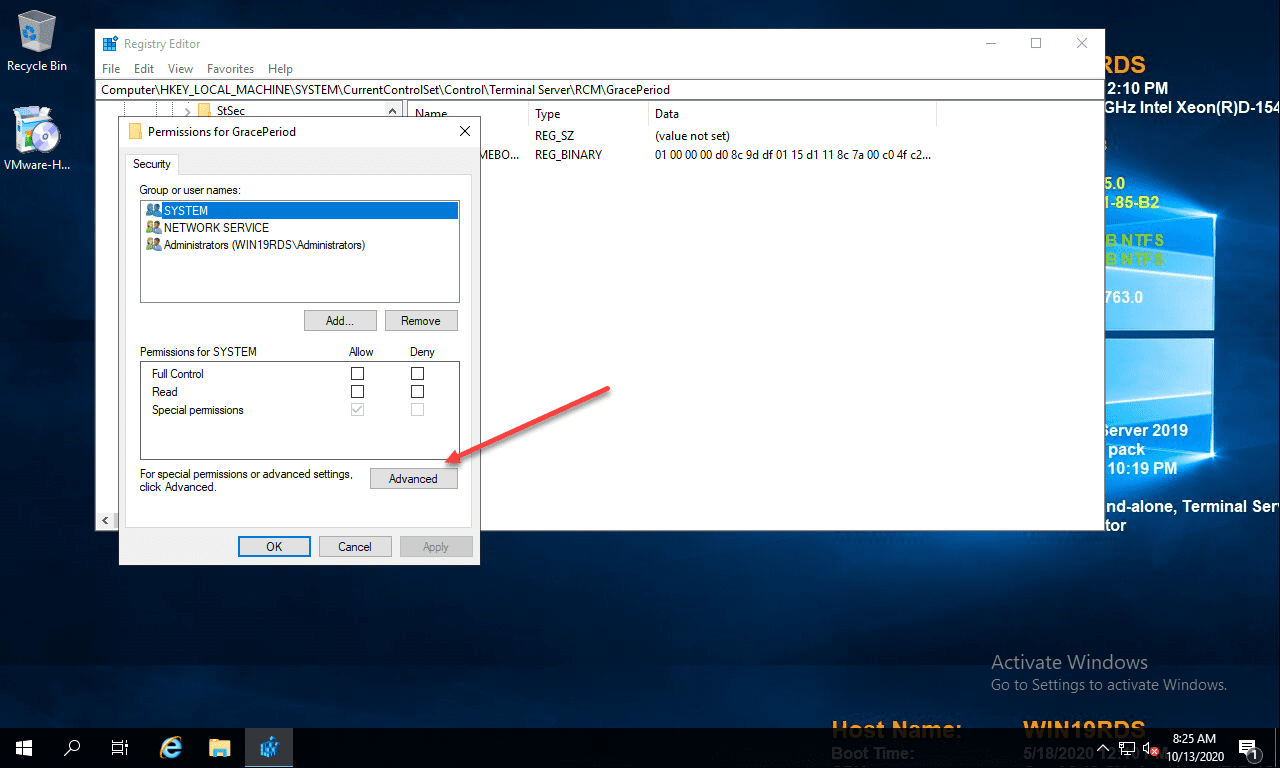
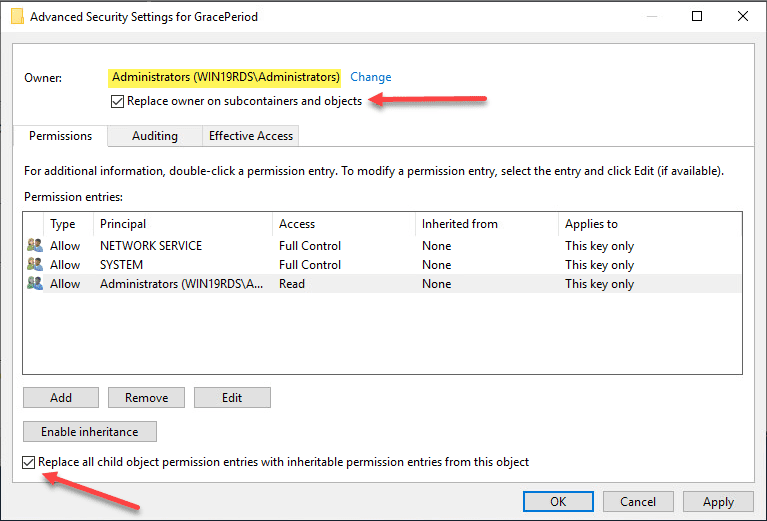
For obvious reasons, there are no default permissions on this key for even Administrators. So you have to first take ownership of the key before you can delete the timebomb value. Click the Advanced button on the permissions dialog box.
Navigate to the Advanced permissions properties
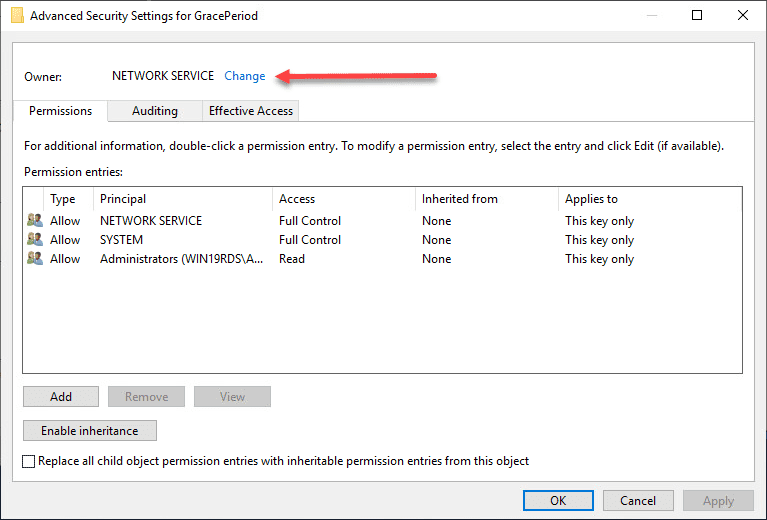
Click the Change button next to the Owner.
Change the ownership of the registry key
Here I have selected local administrators group as the owner of the
key. However, you will want to choose whichever user/group that you want
to use to delete the registry key. Select the options to replace owners
and replace all child object permissions.
User for ownership selected and set to replace permissions on child objects
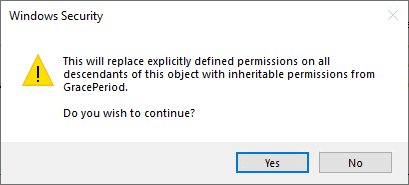
Confirm the replacement of permissions on the registry key.
Confirm replacing permissions
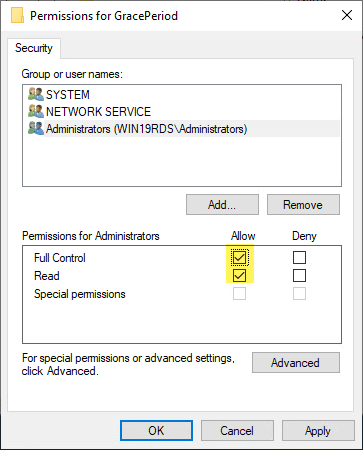
Now that we have changed ownership on the key, we can actually set
permissions without getting permissions errors. Here I am granting
administrators full control on the key.
Change permissions for the user you want to be able to delete the key
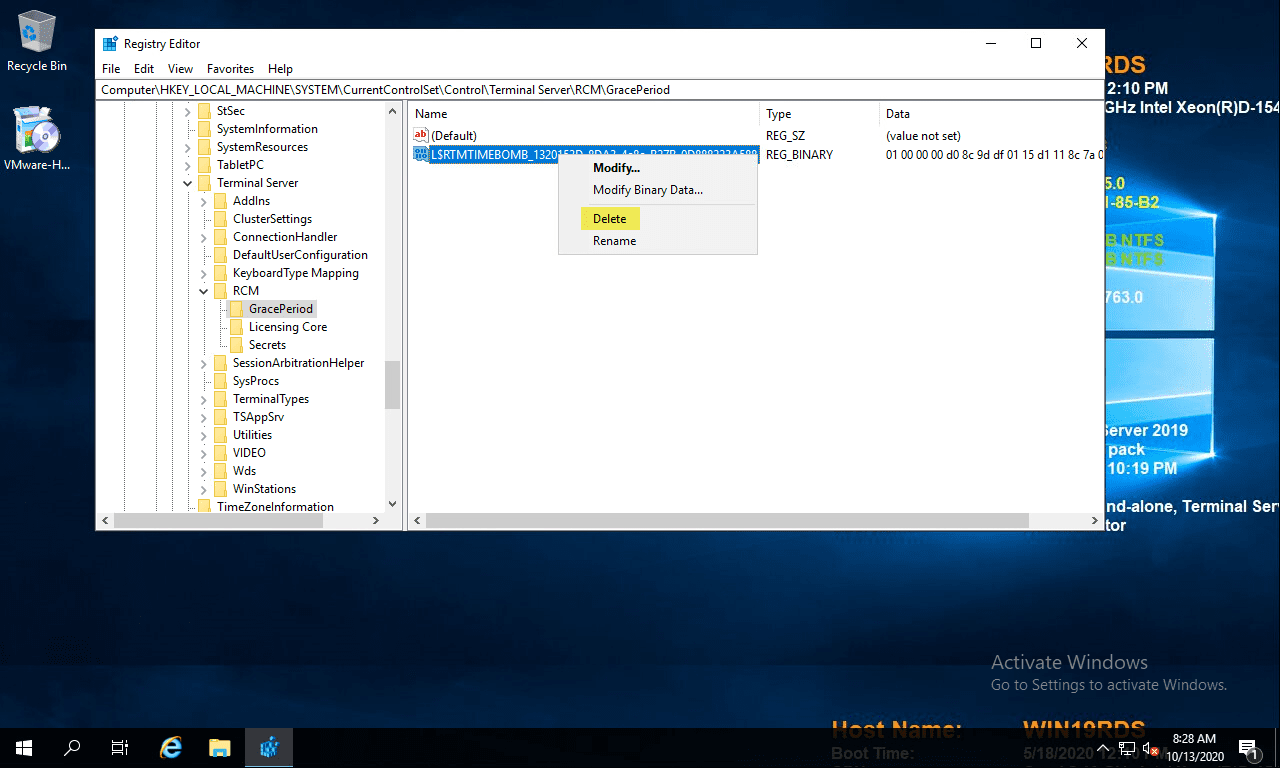
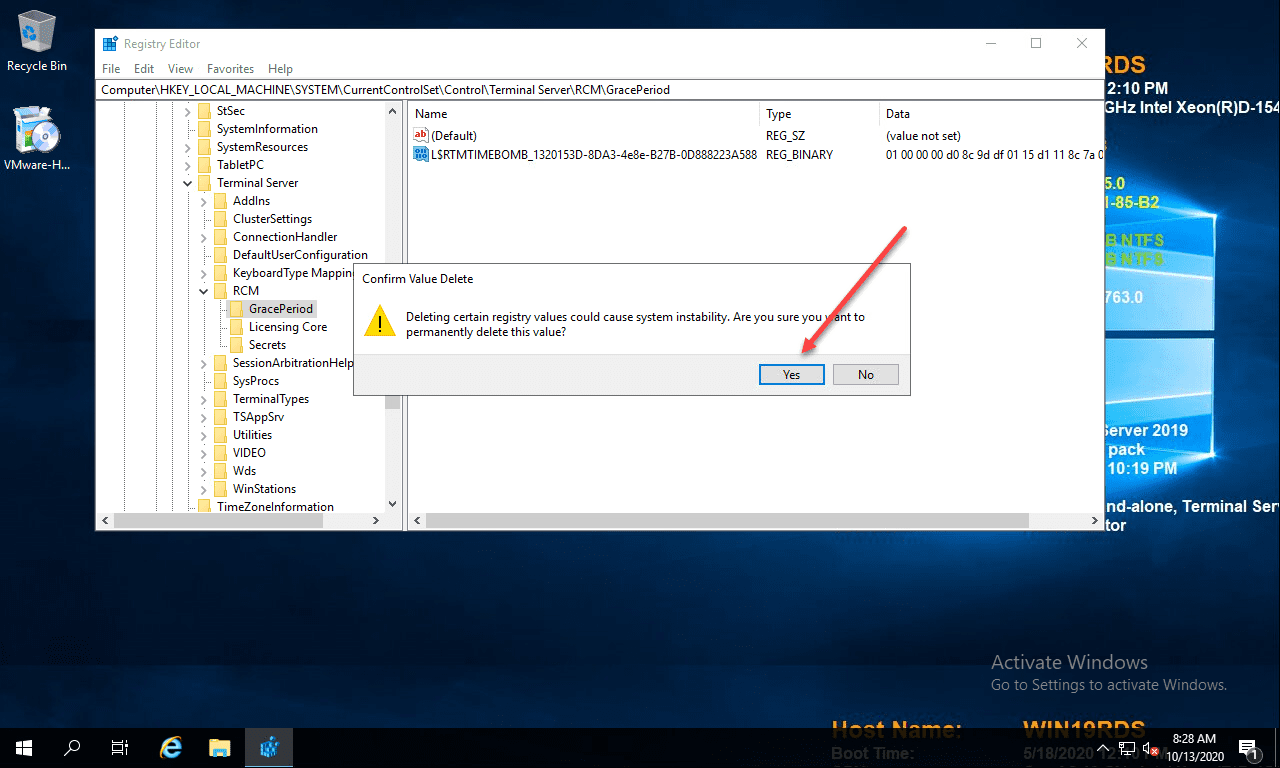
Now, with permissions set, right-click the timebomb value in the GracePeriod key and Delete.
Delete the timebomb key
Confirm the deletion of the registry entry.
Confirm deletion of the timebomb key in the registry
Next, the only thing left to do is reboot your
server. Once the server is rebooted, you can enjoy once again having the
full 120 day grace period for your RDS server in the lab environment.